If you want to create and send payment links via email or text, you will need to setup Stripe. If you need help setting up Stripe, you can use this guide: https://nrcia.org/support-docs/how-to-setup-stripe-electronic-payment-processing/
The payment link feature is helpful if you want to collect credit card payments prior to sending a report. The feature will create a link that you can send to your clients so they can pay and receive their inspection reports.
Please note that the payment link feature requires that you 1) have Stripe set up and 2) have published the report. Follow these steps to send a payment link to your clients.
Publish the Report
Your report must be published to send the payment link. When a client completes payment via the link they will automatically receive the inspection report. After publishing a report, you will see new payment buttons pop up.
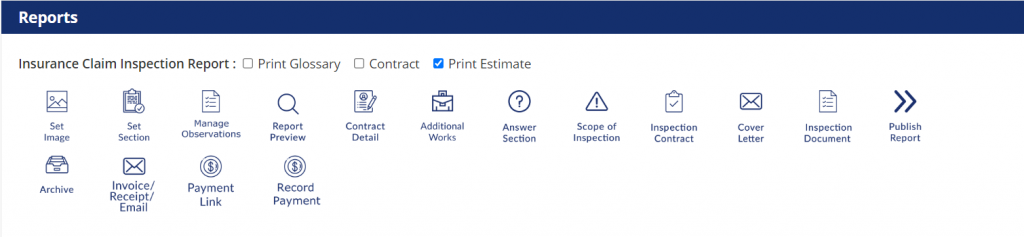
Copy & Paste Payment Link
When you click the icon, it will copy the payment link. You can then paste the link into an email like so:
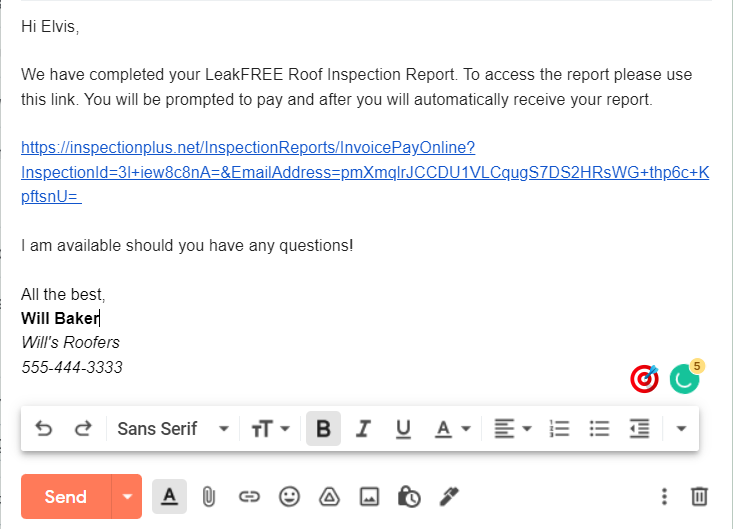
Remember to hyperlink the payment code so clients can click it easily. Click here for a guide on how to create hyperlinks in Gmail, Yahoo, or Outlook.
All done! You will receive an email when the clients pays and you can check payment status within InspectionPLUS.
Tips
1. Create an email template for payments so the message is clear and consistent for your clients
2. Make sure you have your email signature set up to include your NRCIA certification and any other affiliations