You can add additional documents to any inspection report by using the Document feature in InspectionPLUS.
You can add flyers, roofing product brochures, or additional legal documents (lien notices, etc..). You can only add pdfs and pictures. Follow the instructions below to see how to attach documents to an inspection report.
View Current Documents
You can review current documents on the Documents page. You can also add new documents here as well. Click here to view our guide on how to create company documents.
Attaching Docs in Reports Section
The easiest way to attach documents to a report is through the Reports menu.

Scroll down to the Categories, Documents, and Upload Documents Section.

Categories are your folders, use this to find the documents by their storage location. Documents will display any files saved within a category. To attach a document click the empty circle icon. Upload Documents is to attach any additional documents that are not saved to the system (pdfs and pictures only).
If a file is attached successfully it will look something like this.
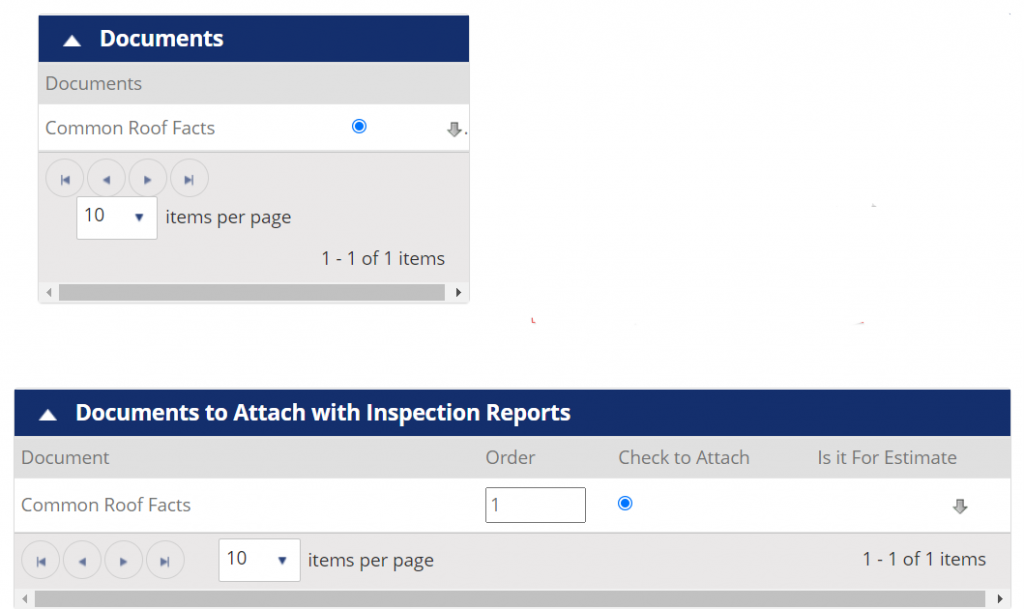
Remember, any documents in the “Company: Report Flyers” should be automatically uploaded to every report. Do not add these documents within the inspection as it may create duplicate documents on the report.
Preview & Publish Report
After adding any files to the inspection report, you can preview your work to make sure it looks right and shows up in the right place.

Note: NRCIA strives to make our software easy to use and accessible for everyone. We ask for you patience as we build out our software and implement changes. If you have issues and need something handled, we are more than happy to assist you.